Tuning
v0.8.9
BeamNG v0.8.9
Beta Crash Cam Controller
Mod Created by:
@STUG
Hinzugefügt:
Just now
Easy in-game control of BeamNG's cinematic crash camera.
Mod Description
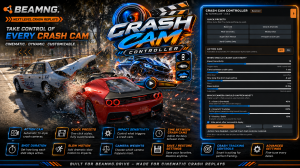
Crash Cam Controller (CCC) gives you direct in-game control over BeamNG.drive's cinematic crash camera and adds the CCC Action Cam TV cinematic camera system. No manual Lua editing is required. Configure, apply, save, and test your camera settings while playing
CCC has two main systems:
Crash Cam - Customize BeamNG's cinematic crash-camera behavior.
Action Cam - Automatic multi-camera cinematics for crashes, live driving, and recorded playback.
FEATURES
• In-game Crash Cam configuration
• CCC Action Cam TV
• Cinematic crash, live-driving, and recorded-playback support
• 10 selectable Action Cam cameras
• Individual camera weighting
• Adjustable and randomized Shot Width
• Adjustable and randomized shot timing
• Adjustable sequence duration and slow motion
• Optional Impact Camera Shake
• Camera Notifications for testing
• Intelligent vehicle tracking and camera positioning
• Tunnel and enclosed-area handling
• Crash Cam quick presets
• Adjustable crash sensitivity, cooldown, and duration
• Three customizable original Crash Cam styles
• Vehicle and traffic tracking
• Advanced crash-detection settings
• Live configuration changes
• Save Settings and Restore Defaults
• Collapsible UI with optional auto-hide
ACTION CAM
Action Cam creates automatic cinematic sequences using the cameras you select.
Configure:
• Sequence duration
• Camera-change timing
• Randomized timing
• Slow-motion speed
• Shot Width
• Random Shot Width
• Impact Camera Shake
• Camera selection
• Individual camera weights
• Camera Notifications
Action Cam is disabled by default and must be enabled in CCC.
ACTION CAM CAMERAS
CCC v0.8.9 includes 10 selectable cameras:
Close Driver View - Close cinematic vehicle shot.
Low Front View - Low cinematic front view.
BeamNG Driver Seat - BeamNG's native driver camera.
BeamNG Hood Camera - BeamNG's native hood camera.
Ground-Level Tracking - Low ground-level tracking shot.
BeamNG External/TV - BeamNG's native External camera.
Broadcast Zoom - Broadcast tracking shot with progressive zoom.
Side / Quarter View - Cinematic side and quarter angles.
Overhead View - Elevated overhead shots.
Aerial Chase - Aerial orbiting chase camera.
Enable any combination you want.
CAMERA WEIGHTING
Each Action Cam camera has its own weight. Higher weighting makes that camera more likely to be selected.
Example: 100% has twice the selection weight of 50%.
Weights are relative and do not need to total 100%. Disabled cameras are excluded from selection.
SHOT WIDTH
Shot Width controls how tight or wide applicable Action Cam shots are.
Lower values create tighter, closer shots. Higher values create wider framing.
Enable Random Shot Width to automatically vary the composition between shots.
SHOT TIMING
Control how quickly Action Cam changes cameras from 2.5 seconds for faster cuts to 10 seconds for longer shots.
Enable Random to vary timing automatically. Certain cameras also use additional minimum shot times to prevent useful shots from being interrupted too quickly.
IMPACT CAMERA SHAKE
ON - Adds TV-style springiness and movement during impacts.
OFF - Provides smoother, more stable cinematic footage.
CCC ACTION CAM TV - LIVE DRIVING
CCC Action Cam TV can be used as your regular driving camera, automatically producing cinematic shots while you drive.
How to enable:
Open Crash Cam Controller.
Turn Action Cam ON.
Select your cameras.
Adjust Shot Width, timing, and weighting.
Apply your settings.
Cycle BeamNG’s camera modes until you reach CCC Action Cam TV.
Drive.
CCC automatically cycles through your selected cameras and handles cinematic positioning and tracking.
Great for cruising, police pursuits, convoys, vehicle showcases, crashes, cinematic videos, and gameplay recording.
RECORDED PLAYBACK
CCC Action Cam TV also works while playing back BeamNG recordings.
Play your recording, select CCC Action Cam TV, and CCC can automatically create cinematic camera views of the recorded action.
Important: CCC automatic Slow Motion does not operate during recorded playback because playback speed is controlled by BeamNG's native recording system. Action Cam camera selection, tracking, and cinematic positioning can still be used.
CAMERA NOTIFICATIONS
Enable Camera Notifications to display the name of each selected Action Cam shot. This is useful when testing camera selections and weighting. Turn it off when you no longer need it.
TUNNEL HANDLING
Action Cam includes specialized tunnel and enclosed-area logic. CCC adjusts compatible camera positioning and selection when normal open-area cinematic placement isn't suitable.
QUICK PRESETS
Balanced - General-purpose cinematic mix.
Close & Dramatic - Favors close crash shots.
Wide Cinematic - Favors wider crash scenes.
Mostly Orbit - Favors orbit-style shots.
Super Slow Motion - Emphasizes slow-motion crashes.
Frequent Crash Cam - Activates more frequently.
Hard Crashes Only - Favors significant impacts.
Presets can be further customized after selection.
ORIGINAL CRASH CAM
With Action Cam OFF, CCC provides detailed control over the standard cinematic Crash Cam.
Impact Sensitivity - Required impact severity.
Time Between Crash Cams - Minimum activation cooldown.
Shot Duration - Length of the cinematic sequence.
Slow Motion - Simulation speed during the crash.
CRASH CAM STYLE 1 - CLOSE / OVERHEAD
Close cinematic crash views with adjustable positioning, distance, lateral spread, FOV, and framing.
CRASH CAM STYLE 2 - GROUND / TRACKING
Ground-based tracking shots with adjustable:
• Search Radius
• Camera Height
• Minimum Distance
• Minimum FOV
• Maximum FOV
CRASH CAM STYLE 3 - FREEZE / ORBIT
Orbiting cinematic crash shots with adjustable:
• Orbit Radius
• Marker and Freeze Timing
• Field of View
• Camera Smoothing
Each of the three Crash Cam styles also has individual weighting to control how frequently it is selected.
TRACKING OPTIONS
CCC includes configurable traffic, static-object, and vehicle tracking along with advanced crash-detection controls for additional fine tuning.
APPLY, SAVE, AND RESTORE
Change settings and apply them directly while playing.
Save Settings stores your preferred configuration.
Restore Defaults returns CCC to its default configuration.
The controller can also be collapsed or automatically hidden after settings are applied.
INSTALLATION
Download Crash Cam Controller.
Place the ZIP in your BeamNG.drive mods folder.
Do not unpack the ZIP.
Start BeamNG.drive and enable CCC in Mod Manager.
Enable BeamNG’s Cinematic Crashes / Crash Camera setting.
Enter Freeroam.
Open HUD Apps and add Crash Cam Controller.
Configure CCC and apply your settings.
IMPORTANT
BeamNG's built-in Cinematic Crashes / Crash Camera MUST be enabled for automatic crash-triggered sequences.
CCC Action Cam TV is disabled by default. Enable Action Cam in CCC before selecting CCC Action Cam TV from BeamNG's camera modes.
COMPATIBILITY
Current Version - v0.8.9
Developed and tested with BeamNG.drive 0.39.4.
Future BeamNG camera-system changes may require CCC updates.
BETA RELEASE
CCC remains in Beta. Testing across different vehicles, maps, tunnels, and gameplay situations is welcome.
When reporting a problem, please include:
• BeamNG version
• Vehicle and map
• Camera involved
• Crash, Live, Recorded, or Tunnel mode
• CCC settings being used
• Relevant console or log errors
• Other camera-related mods enabled
SUPPORT
Report bugs through the BeamNG discussion thread or contact:
tech.n9ne225@gmail.com
CREATED BY
TechN9ne225
Feedback, bug reports, and suggestions are welcome.
How to install this mod in BeamNG.drive
- Download the mod file.
- Move the unmodified .zip file into your BeamNG mods folder:
AppData\Local\BeamNG.drive\0.XX\mods - Launch BeamNG.drive – the mod will appear in your vehicle selector or repository!
File Name:
Direct Download
File Size:
Externer Host
Created by:
@STUG
downloads:
98
Likes:
33
Added On:
8/27/2026
100% Virus-Checked & Free Direct Download